Turn an iPhone Voice Memo Into a Finished Song With AI
Got a voice memo of a song idea sitting in your phone? Here's how to turn it into a real, produced track without ever leaving iOS.
Open the Voice Memos app on your iPhone. Scroll. Count how many of those recordings are song ideas you never finished.
This post is about closing that loop. Not by exporting your voice memo to a desktop DAW. Not by uploading it to a browser. By turning a voice memo into a finished song with vocals, instruments, and cover art — entirely on the same iPhone you recorded it on.
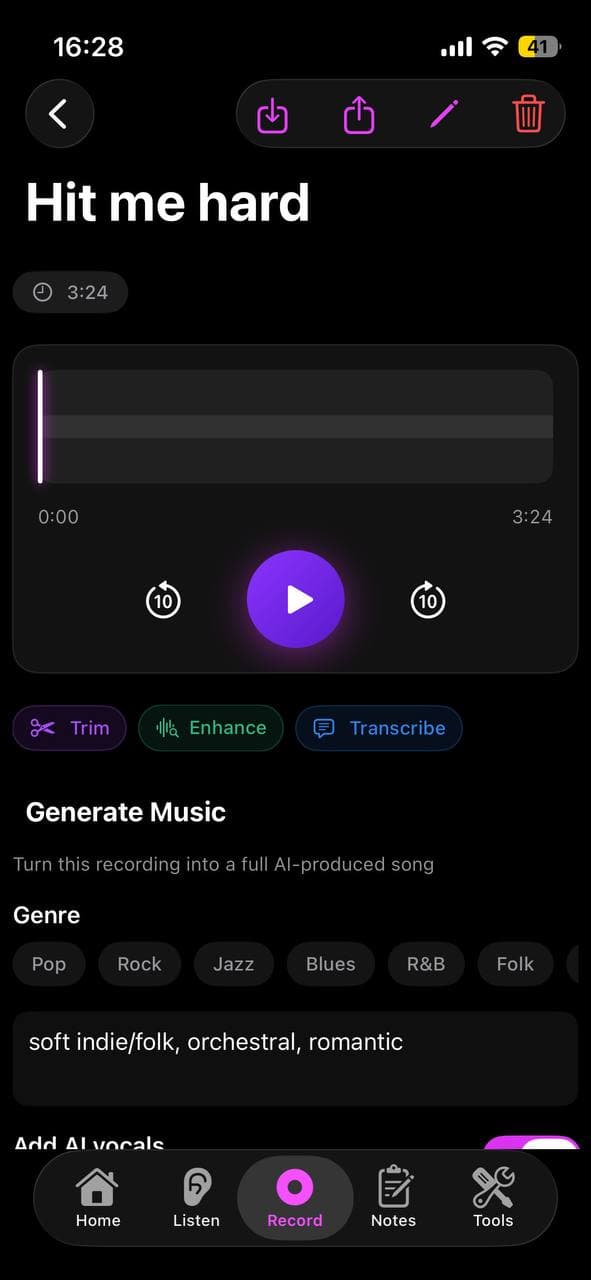
Why your Voice Memos folder is full of dead songs
Apple's Voice Memos app is brilliant at one thing: capturing audio fast. Tap the red button, the idea is safe.
The trouble is everything that's *supposed* to happen next. To turn that voice memo into a real song you historically had to: export the file to your laptop, open a DAW, recreate the chord progression, hire a vocalist or fake one yourself, mix, master, export, re-import to your phone. Each step is its own decision, its own friction, its own hour of an evening.
Most voice memos die at step one. Not because the idea was bad — because the path to "finished" was too long.
What you can (and can't) do in Apple's Voice Memos app
Voice Memos can record, trim, rename, and share. It cannot detect chords or key, find the BPM, suggest a structure, write lyrics, generate a vocal, produce instruments, or mix anything. It's a capture tool, not a creation tool.
The modern playbook is to keep the *capture habit* (which Voice Memos has trained into you) but route the audio into a tool that actually finishes the song.
The 3 paths from voice memo to finished song
Depending on what you recorded, there are three distinct workflows:
Path 1 — You hummed or sung a melody. Use Hum to Song: the AI extracts the melodic skeleton and generates a fully arranged song around it (vocals, instruments, mix).
Path 2 — You spoke a lyric idea or sang a draft lyric. Transcribe to a Note, polish with AI, then generate music from the lyric.
Path 3 — You recorded an existing song you want to reimagine. Use Cover a Song: upload the file, pick a new style, and the AI restyles it.
Path 1: Hum a melody and generate around it
Open Larka's Record tab. Tap the big button. Hum or sing the melody from your old voice memo into the mic — yes, you can play the voice memo from another device and re-record into Larka, but it's almost always faster to just hum it again. Twelve seconds is enough.
Tap Hum to Song on the resulting recording. Pick a genre (lo-fi, indie, pop, R&B, country, electronic, cinematic). Pick a mood. Tap Generate. In about 60 seconds you have a fully produced song with AI vocals singing original lyrics over your melody.
If you'd rather keep your *own* voice memo as the source rather than re-humming, the trick is to share the file from Voice Memos to Larka — but the in-app re-hum is faster for most people because Larka can read the room (mic placement, level) better than a 2017 voice memo recorded under a pillow.
Path 2: Speak a lyric, generate music from it
If your voice memo is you mumbling a lyric idea, use the Notes tab. Create a new note, transcribe (or paste in) the lyric, optionally use AI Refine to polish the rough edges, set the genre + mood + key, and tap Generate.
Larka returns a song where the AI vocal sings *your actual lyrics*. This is the workflow for songwriters whose ideas usually start with words rather than melody.
Path 3: Restyle an existing voice-memo song
If your voice memo is a mostly-finished song you sang into the phone — verse, chorus, the whole arc — use Cover a Song. It uploads the audio, runs it through the model, and returns the same song reimagined in a different style. A folk demo becomes a synthwave track. A bedroom acoustic becomes country. The melody and lyrics survive; the production transforms.
What to record on your phone *first* so the AI step works better
If you're capturing fresh ideas and want them to be AI-finishable later, two small habits help:
Hum or sing in a quiet room. The model is forgiving but background noise costs detail.
Commit to the notes. Vague ambient hums extract poorly. Sing the melody like you mean it.
One-section captures beat full-song captures. A 12-second hook gives the AI more room to invent than a rambling 90-second take.
Stay roughly in one key. Drift is fine, but a melody that wanders across three keys gives the model an ambiguous skeleton.
Sharing the finished MP3
Once Larka returns your song, the share button exports an MP3 with embedded artwork (cover art generated from your lyrics and mood) and metadata. Send to iMessage, AirDrop to your laptop, post to Instagram or TikTok, upload to DistroKid — all the normal places.
The MP3 is yours. On Pro and Studio plans you have full commercial-use rights, including streaming-platform releases. On the free tier, the song is yours to keep but for personal use only.
The case for never leaving iOS
Every existing tutorial for "turn a voice memo into a song" assumes you're going to leave iOS at some point — to use Suno's web app, to open a DAW, to do the mixing on a laptop. Each of those steps adds friction.
The entire pitch for doing this on Larka is: the same iPhone that captured the idea finishes the song. No export, no upload, no second device. Most voice memos are a thirty-second window of inspiration. The window closes. Whatever lives on the same device as the capture, in the same minute, is what gets finished.
Be first to try Larka AI
Larka launches on iPhone and iPad soon. Join the waitlist for an early-access link the moment it's live.
Join the waitlist →