Import Audio
Take any audio — a saved recording or an uploaded file — and restyle it into a new genre using our AI engine.
Import Audio turns audio you already have into a fully produced song. Bring in one of your own recordings, a voice memo, or a rough demo you sang or played, pick a genre, and Larka builds a new production around your idea.
A note on what this is (and isn't): it works on your own material. It doesn't recreate or "cover" other artists' songs, and audio or prompts that reference real artists or copyrighted tracks can't be processed. Think of it as taking your own home recording and making it sound studio-produced, not covering a song from the charts.
How to start
Open the Home screen. Tap the Import Audio card (gradient with a NEW badge, between the feature cards and the quick tools). A picker sheet appears with two options.
Pick from Library
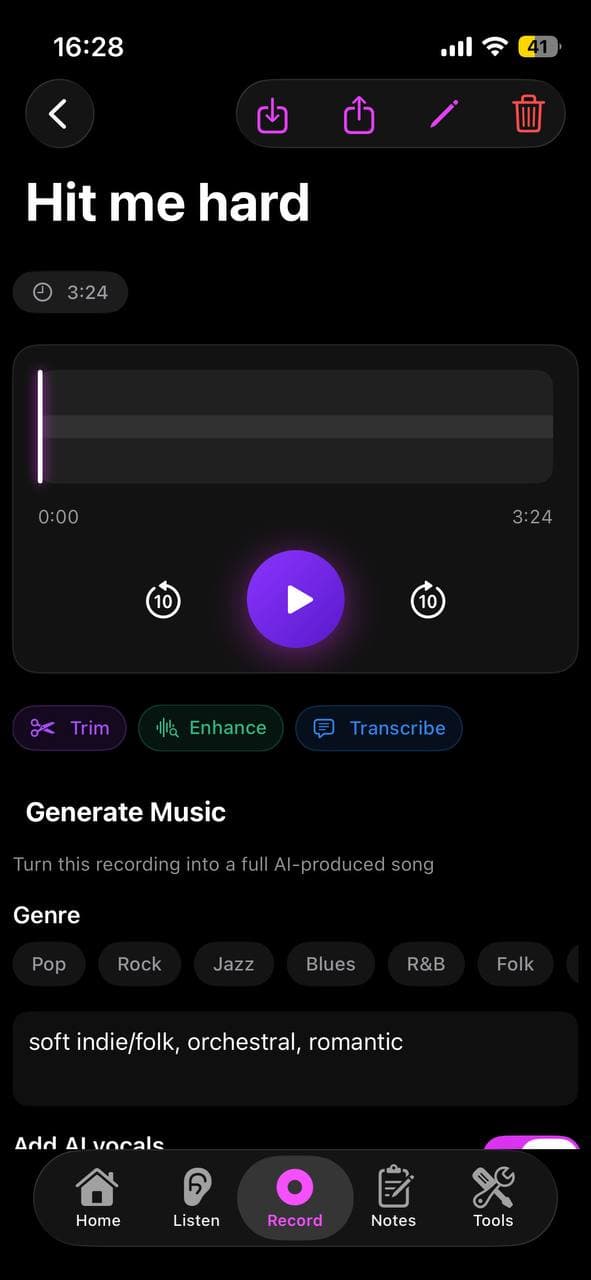
Shows every recording you've made — hums, chord recordings, and past covers. Tap one to open its detail view and go straight to the Generate Music section. Any recording can be covered, not just melody ones.
Import from Files
Opens iOS's Files picker. You can pick audio from iCloud Drive, on-device Files, Voice Memos shared to Files, or anywhere else iOS exposes. Supported formats: MP3, M4A, WAV, AAC, AIFF. File size up to 50 MB.
The file is saved into your Library as a new recording (tagged as an upload) the moment you import it, so anything you type before generating is kept, and you can always come back to it later without re-uploading.
Generate settings
The Generate Music section on a recording's detail view lets you pick:
- ·Genre (Pop, Rock, Jazz, Blues, R&B, Folk, Electronic, Classical, Reggae, Country, Latin, K-Pop, Afrobeats, Bossa Nova, House, Ambient, Lo-Fi, Indie, Funk, Soul)
- ·Mood / style (optional text). Describe the sound, not the artist. Real artist and band names can't be processed and will make generation fail.
- ·Add AI vocals (when on, a lyrics editor appears so you can write words for the track)
- ·Length: Auto (Larka picks, about 2 minutes), 1:00, 2:00, 3:00, or Extend (generate then automatically extend past ~3 minutes). Pick a length that fits your lyrics so the AI doesn't repeat or invent verses to fill time.
Tap Generate and Larka covers your audio. 30–90 seconds later the result appears in the Saved Tracks list for that recording.
Try it in many styles
Every generation adds a new track to the recording's Saved Tracks. Run the same idea through a few genres — "this as jazz", "this as lo-fi", "this as cinematic" — and compare the results. Each is saved with its own MP3 + ID3 tags + cover art, ready to share.
Tips
- ·The input audio doesn't need to be high-quality — Our AI engine handles rough sources.
- ·Shorter input tracks (30–90 seconds) work best. Our AI engine covers up to ~1 minute directly; longer files focus on the first minute.
- ·Genre changes produce the most dramatic restyles. "Bossa Nova" over a rock original can be surprising.
- ·Turn Add AI vocals OFF to get a purely instrumental cover (strip the original vocals out).
How many covers you can make
Covers count toward your free-song allowance (25 during the beta), shared with Generate, Extend and Hum to Song. There's no separate daily limit.