How to Layer Your Real Voice Over an AI Instrumental on iPhone
Want your actual voice on an AI track instead of the model’s? Two paths — generate instrumental-only or split a finished song into stems — then record and mix entirely on the phone.
AI vocals in 2026 are very good. Sometimes that is exactly what you want. Sometimes it is not — because the song is yours, and the voice that should be on it is yours, and the model’s tasteful-but-anonymous vocal is the wrong choice for what you are making.
This is a guide to the inverse workflow: keep the AI as the producer, but put your real voice on top. End to end on the phone. No DAW, no studio, no exporting to a laptop.
Two paths get you there. Pick the one that matches what you already have.
The two paths
Path A: generate instrumental-only from the start. Best if you have not generated the song yet, or are about to. You tell the AI to produce a backing track with no vocal, then sing over it.
Path B: split a finished song into stems. Best if you already love a song you generated with AI vocals and want to swap *just* the vocal for your own. Larka’s Stem Separation extracts the instrumental.
Both paths land in the same place: a clean instrumental, a recording of your voice, and the two mixed together into a finished track you can share.
Path A — Generate as instrumental from the start
If the song does not exist yet, this is the cleaner option — no separation artifacts to deal with.
1. Open the Notes or Hum-to-Song flow. Either entry point works.
2. Toggle "Instrumental" before generating. In the genre/mood picker, there is a toggle for instrumental-only output. Turn it on. The AI will produce a backing track with drums, bass, harmony instruments — no vocal performance, no lead melody on top.
3. Set the key carefully. This matters more than usual. Whatever key the instrumental is in, you have to sing in. Larka surfaces the key on every generated track. If it lands in C♯ minor and you cannot comfortably sing in C♯ minor, regenerate or use the key-shift control before recording.
4. Set the tempo carefully too. A vocal at 80 BPM has different phrasing than the same melody at 110 BPM. Pick the tempo you want before you commit to recording vocals on top.
5. Save the instrumental. Once you are happy with the backing track, save it. This is now the bed you will sing over.
Path B — Strip the vocal from a finished AI song
If you already generated a full song (vocals + instruments) and now wish you had recorded the vocal yourself, use Stem Separation to extract the instrumental.
1. Enable Stem Separation. Settings → Beta Features → Stem Separation. (Free during Beta.)
2. Open the song. In Saved Tracks, tap the ⋯ menu on the track.
3. Tap Separate Stems. The AI splits the song server-side. Takes 1–4 minutes. You will get a notification when it finishes.
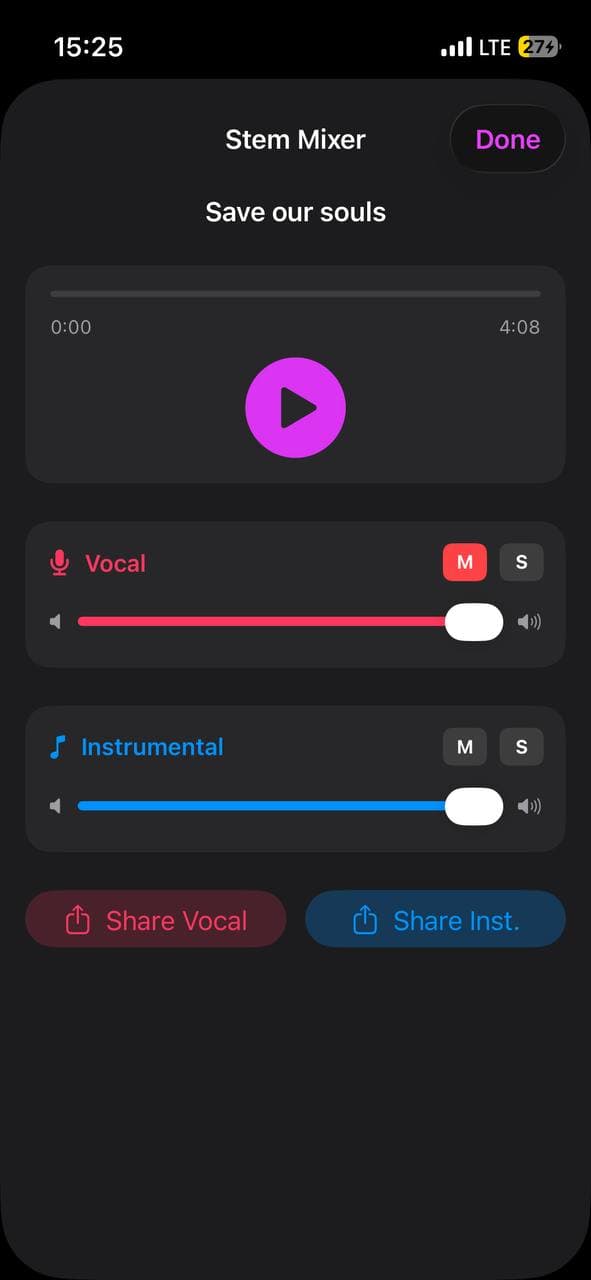
4. Open the Stem Mixer. You will see two channels: vocal (pink) and instrumental (blue).
5. Tap Share Inst. Save the instrumental MP3 to Files. This is the bed for your real-voice recording.
Some bleed is normal — separation is not perfect, and you may hear faint vocal artifacts in the instrumental. Songs with heavy vocal reverb separate worst. If you can pick Path A instead, it gives a cleaner instrumental.
Setting up the recording
A few setup choices make the difference between a vocal that sits and a vocal that sticks out like it was overdubbed in a bathroom.
Use headphones. Not optional. You need to hear the instrumental while you sing without bleeding it into the recording. Wired headphones beat AirPods — lower latency, no Bluetooth lag between hearing and singing.
Mic placement. The iPhone’s bottom mic is the best one. Hold the phone about four fingers’ width from your mouth, off to one side (so plosive consonants do not pop the diaphragm). Do not sing directly into the mic.
Room. A small, soft-furnished room beats a big empty one. Closets full of clothes are legitimately good. Hard, reflective rooms (bathrooms, kitchens) give you a slap-back you cannot remove later.
Volume of the instrumental in your headphones. Loud enough to be confident, quiet enough that the rhythm is in your body, not your ears. If you are belting along to a wall of sound, your vocal will be too loud relative to where it needs to sit in the final mix.
Recording the vocal take
Open the Recorder. Tap record. Sing.
A few principles:
Do whole-song takes first, comp later. Try to get a single take all the way through that has the right energy, even if the pitch is imperfect on a few lines. Energy and feel are harder to fix than individual lines.
Record three takes minimum. Each one will have different strengths. You will end up using parts of multiple takes.
Sing slightly quieter than your performance instinct says. Studio vocals always sound louder than they were sung. Restraint reads as confidence; over-singing reads as nervous.
Watch the meter. If the recorder shows clipping (peaking into red), back off the mic or sing softer. Clipped audio cannot be fixed.
After each take, label it (Take 1 — best chorus; Take 2 — better verses; etc.). You will thank yourself in the next step.
Mixing your voice with the AI bed
In the Stem Mixer (or the equivalent two-channel mix view for Path A), your vocal goes on one channel, the AI instrumental on the other.
Start with both channels at default. Play back. Listen with fresh ears — not while the recording is hot.
The vocal is too quiet (most common). Bring the vocal up 3–6 dB. If your phone’s mixer uses 0–1 sliders instead of dB, nudge the vocal slider up about a quarter step.
The vocal sticks out and sounds dry. AI instrumentals usually have a touch of natural reverb baked in; your dry bedroom vocal will sound out of place. If your mixer has a reverb send, add a small amount (just enough that you stop noticing it as separate). If not, accept that a dry, intimate vocal works for some genres (lo-fi, singer-songwriter, bedroom pop) and not for others (pop, R&B).
The vocal sounds muddy. Often the result of singing too close to the mic. Re-record with the phone slightly farther from your mouth.
The two elements feel like they are in different songs. Usually means a tempo or key mismatch. Stop, check that the instrumental is the same key you were singing in. If you sang in a different key from the bed, no amount of mixing will save it.
Sharing the finished song
Once the mix sits, tap Share. The mixer exports a single bounced MP3 with your vocal and the AI instrumental merged.
From there it is the same export menu as any other song: AirDrop to Mac, save to Files, send to iMessage, post to TikTok or Instagram, upload to a distributor for streaming release.
A few destinations worth thinking about:
TikTok and Reels. Vertical video over your finished song is the highest-leverage place to post. The song does not have to be perfect — the format rewards personality.
DistroKid / Amuse / Ditto for streaming release. If the result is good enough to want on Spotify, the path from here is the same one any other song takes. (We have a full guide on that.)
Group chat. Genuinely the most honest first listener. If your real friends keep playing it after the first listen, you have something.
Common problems and fixes
My voice cracks in the chorus. Either the key is wrong for your range, or you are pushing too hard. Try the same vocal one whole step lower (key-shift the instrumental down) before assuming the song needs less voice.
The vocal is in time with the click but feels late on playback. Your headphone latency was higher than you noticed. Use wired headphones, or sing slightly ahead of where you think the beat is.
The lyrics feel like they do not fit the rhythm. AI instrumentals have phrasing baked in (where the snare hits, where the bass moves). Your lyric may have too many syllables for that phrasing. Edit the lyric for syllable count, not just meaning.
My vocal is so much worse than the AI vocal. Two thoughts. One: AI vocals are professionally produced before they reach you — your home recording is not getting the same processing. Two: a recognizable human voice that is slightly imperfect will almost always outperform a polished AI vocal in actual listener attention. People want to hear *you*. That is the whole point of this workflow.
The deeper point
The first wave of AI music was about replacing humans — type a prompt, the model sings the song. That works, and it has its place.
The second wave, the one that is starting to matter more, is about *using* AI as the production crew you never had. The bass player, the drummer, the keys player, the engineer who knew how to make it sit — those are now in the phone. What you bring is the part the model cannot: a voice with a history in it, a phrasing that came from your specific life, a moment of timing that no model would invent.
The AI does the production. You do the singing. That division of labor turns out to be the one that produces the most interesting songs.
Be first to try Larka AI
Larka launches on iPhone and iPad soon. Join the waitlist for an early-access link the moment it's live.
Join the waitlist →