Songwriter Notes
Your musical sketchbook — capturing ideas, lyrics, and musical context all in one place.
Songwriter Notes is Larka's idea-capture system. Every note holds your lyrics or ideas alongside musical metadata — key, scale, genre, mood — so everything needed to generate music lives in one place.
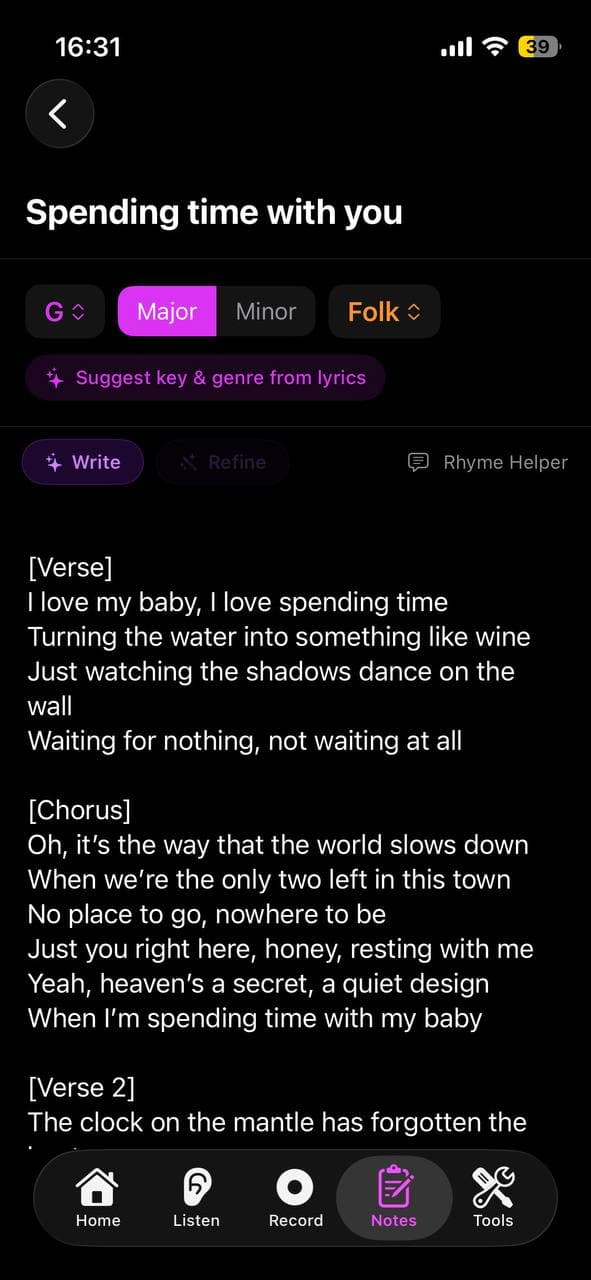
Creating a note
Go to the Notes tab and tap the + button. You can:
- Give it a title
- Write lyrics, chord ideas, or any text in the main editor
- Set the key, scale, genre, and mood
Genre starts empty on new notes — tap the Genre picker to choose from 25 styles. You can leave it unset and let the AI infer a style from your lyrics and mood.
Or start from a recording — in your Recording Detail, tap "Create Note" to pre-fill a note with the detected key, scale, and BPM.
The note editor
The note editor supports free-form text with undo/redo. Type your lyrics, chord charts, or any musical notes. The content is auto-saved as you type.
The top of the note has quick actions: Save (forces an immediate save), Rename, and Delete.
At the bottom of the note you'll find all the music generation controls — your note content and settings are used together when generating.
Structuring your lyrics
Use bracket labels to tell the AI how your song is structured:
[Verse]
Line one of your verse
Line two of your verse
[Chorus]
Your chorus lines here
[Bridge]
Bridge section
Supported labels: [Verse], [Chorus], [Bridge], [Pre-Chorus], [Outro], [Intro].
The AI reads these as structural markers and will try to match the energy and phrasing to each section — verses typically more narrative, choruses more anthemic. You can repeat sections (e.g. two [Verse] blocks) and the AI will treat them as different parts.
Multiple generated versions
Each note can have unlimited generated song versions. Every time you tap Generate, the result is added to that note's version list. You can:
- Name each version (e.g. "Version with piano", "Faster tempo try")
- Play, share, or delete individual versions
- Compare different interpretations of the same idea
Searching your notes
Use the search bar at the top of the Notes screen to filter by title, lyrics content, genre, key, or mood. Results update as you type — useful when you remember a lyric fragment or a specific key but not the note's title.
Notes that have generated songs show a small indicator in the list so you can tell them apart at a glance.